← SuperOffice MCP Server

Connect with GitHub Copilot in VS Code

Add the SuperOffice MCP Server to GitHub Copilot in Visual Studio Code.

Requires the GitHub Copilot extension in VS Code.

Option 1 — User profile (all workspaces)

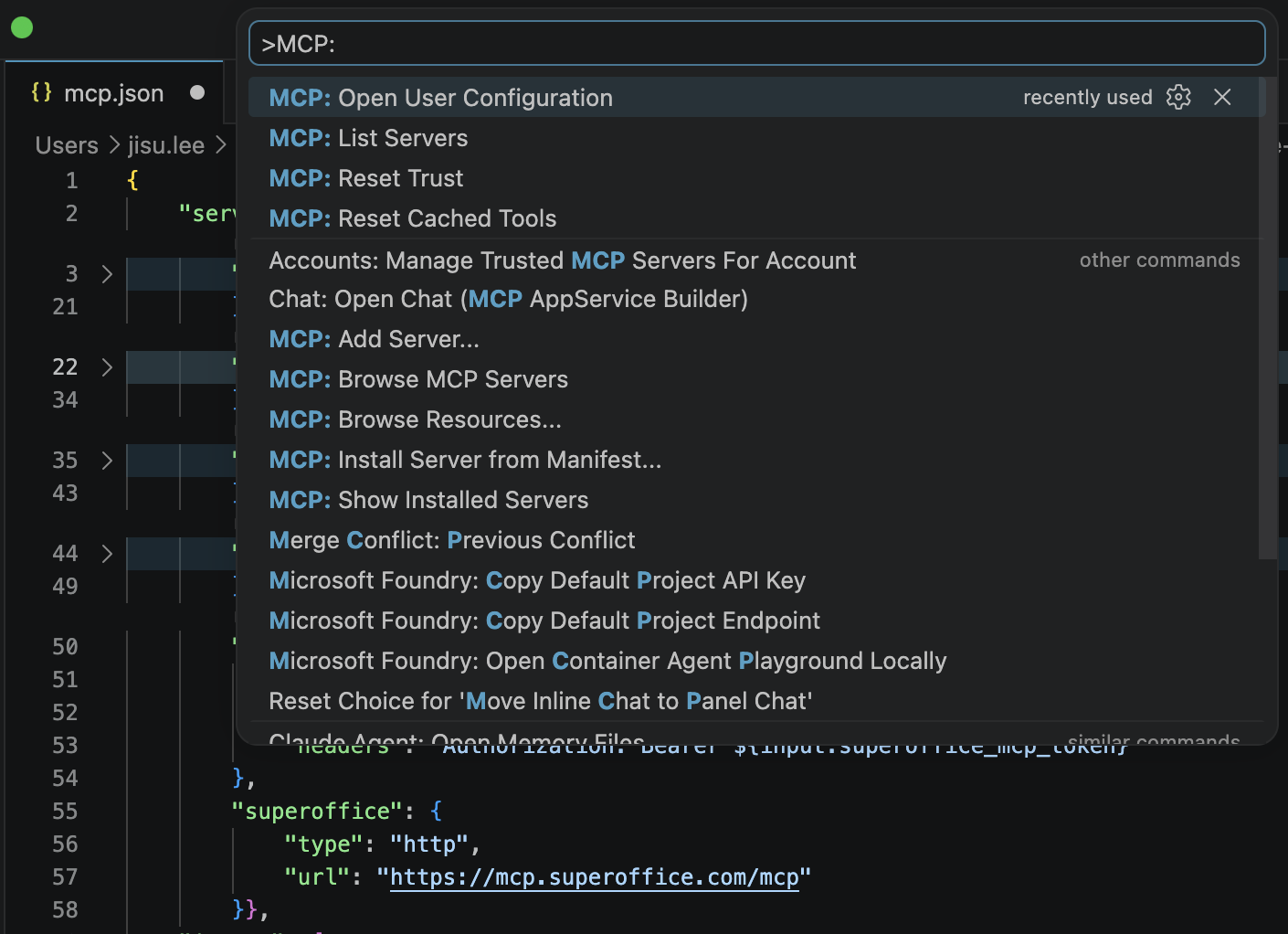
  1. Open the Command Palette (Cmd+Shift+P or Ctrl+Shift+P)
  2. Run: MCP: Open User Configuration VS Code — MCP: Open User Configuration in Command Palette
  3. Add this configuration:
    {
      "servers": {
        "superoffice": {
          "type": "http",
          "url": "https://mcp.superoffice.com/mcp"
        }
      }
    }
  4. Save the file
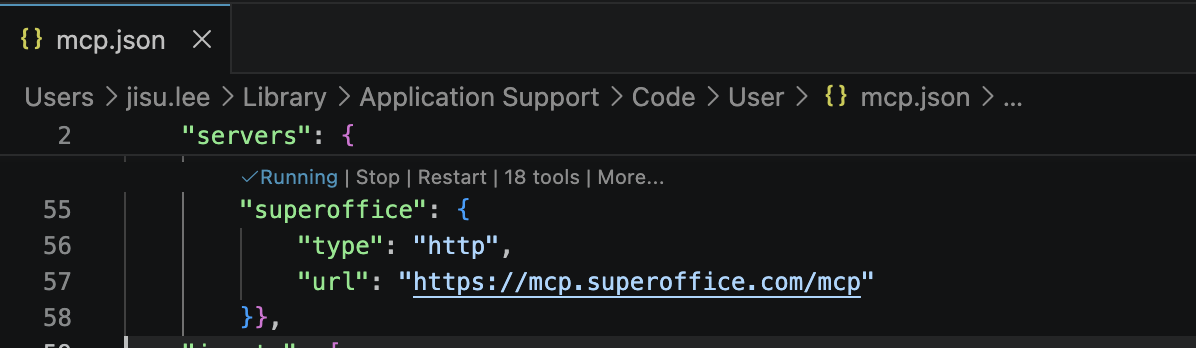
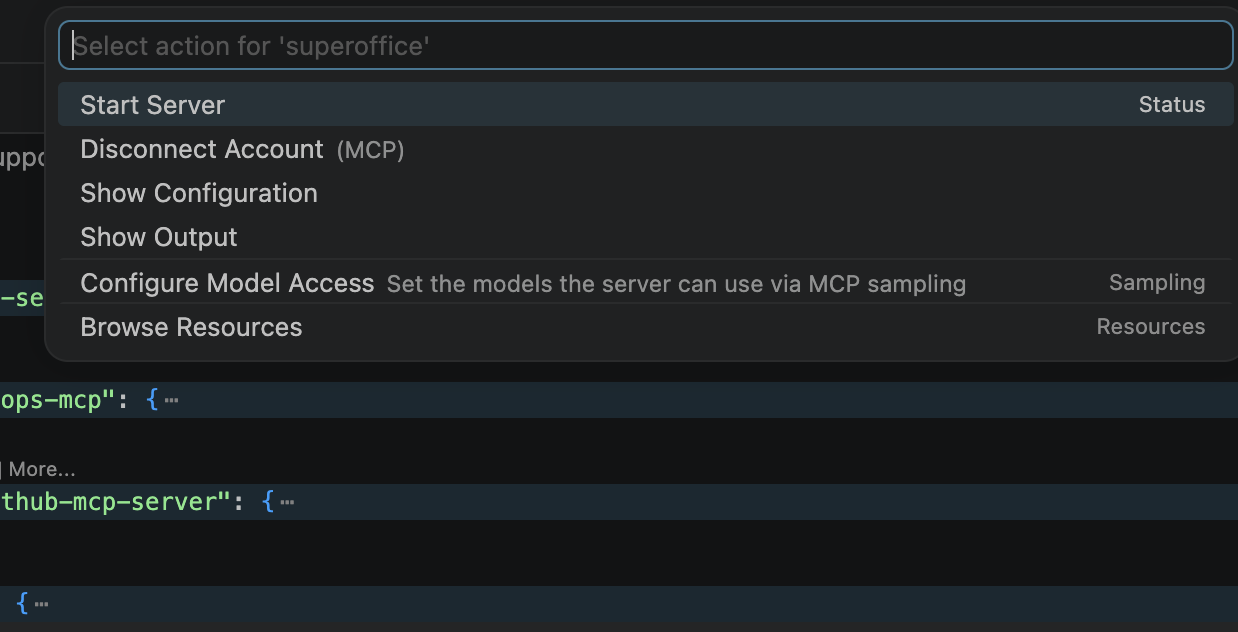
  5. Click the Running button or use MCP: List ServersStart Server VS Code — Running button to start the MCP server VS Code — MCP: List Servers showing SuperOffice
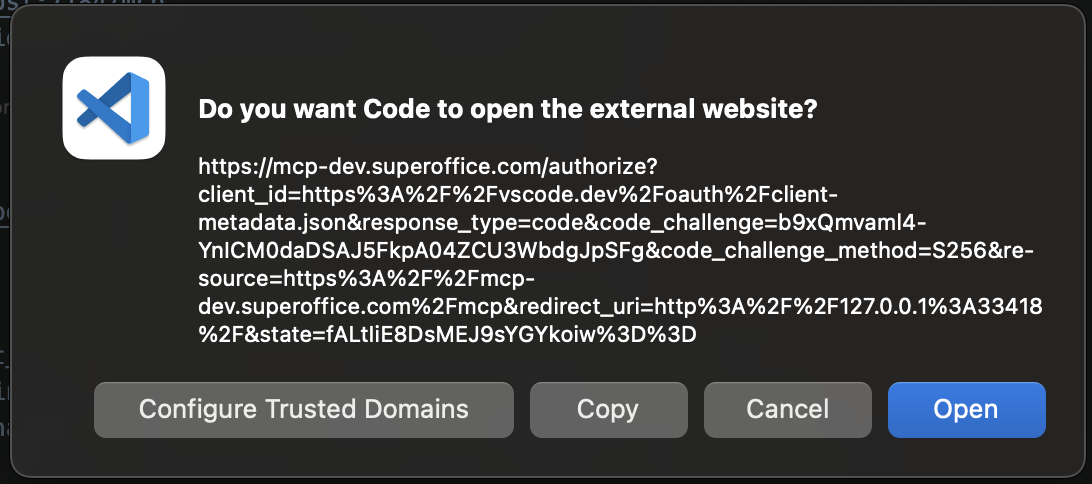
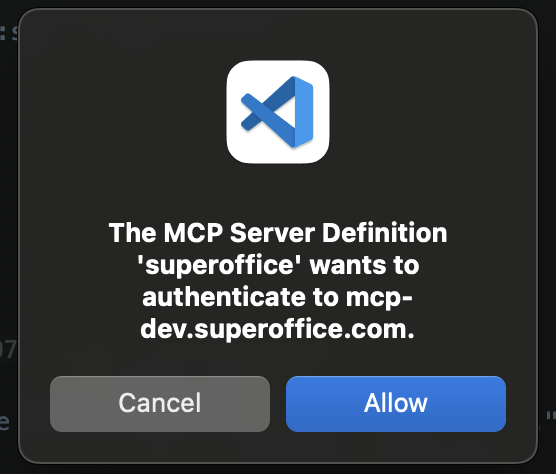
  6. Authenticate on first use VS Code — SuperOffice authentication prompt VS Code — SuperOffice authentication completing
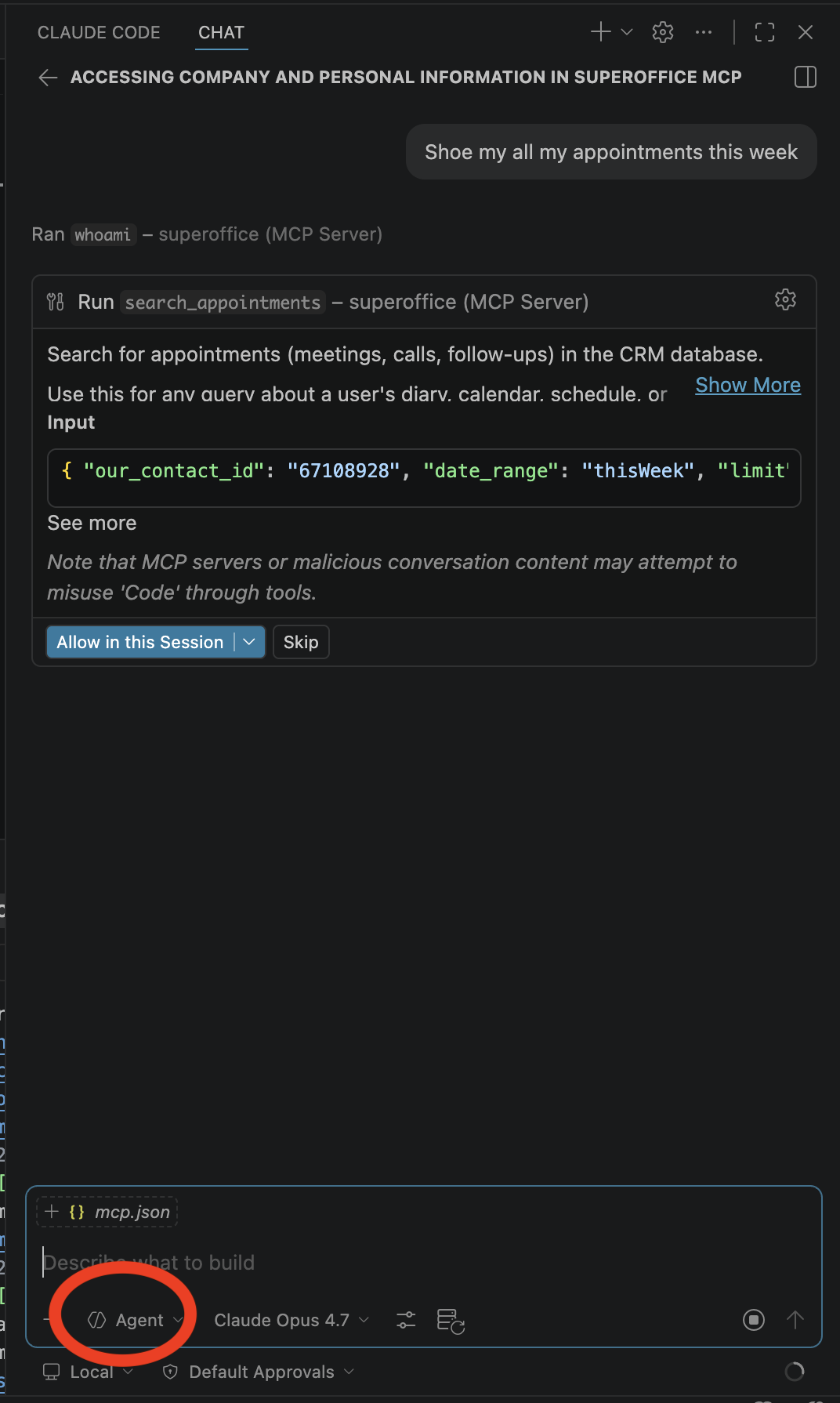
  7. Switch to Agent mode in Copilot Chat VS Code Copilot Chat — switching to Agent mode

Option 2 — Workspace (single project)

Create or update .vscode/mcp.json in your project:

{
  "servers": {
    "superoffice": {
      "type": "http",
      "url": "https://mcp.superoffice.com/mcp"
    }
  }
}
Save the file, authenticate on first use, and switch to Agent mode in Copilot Chat.