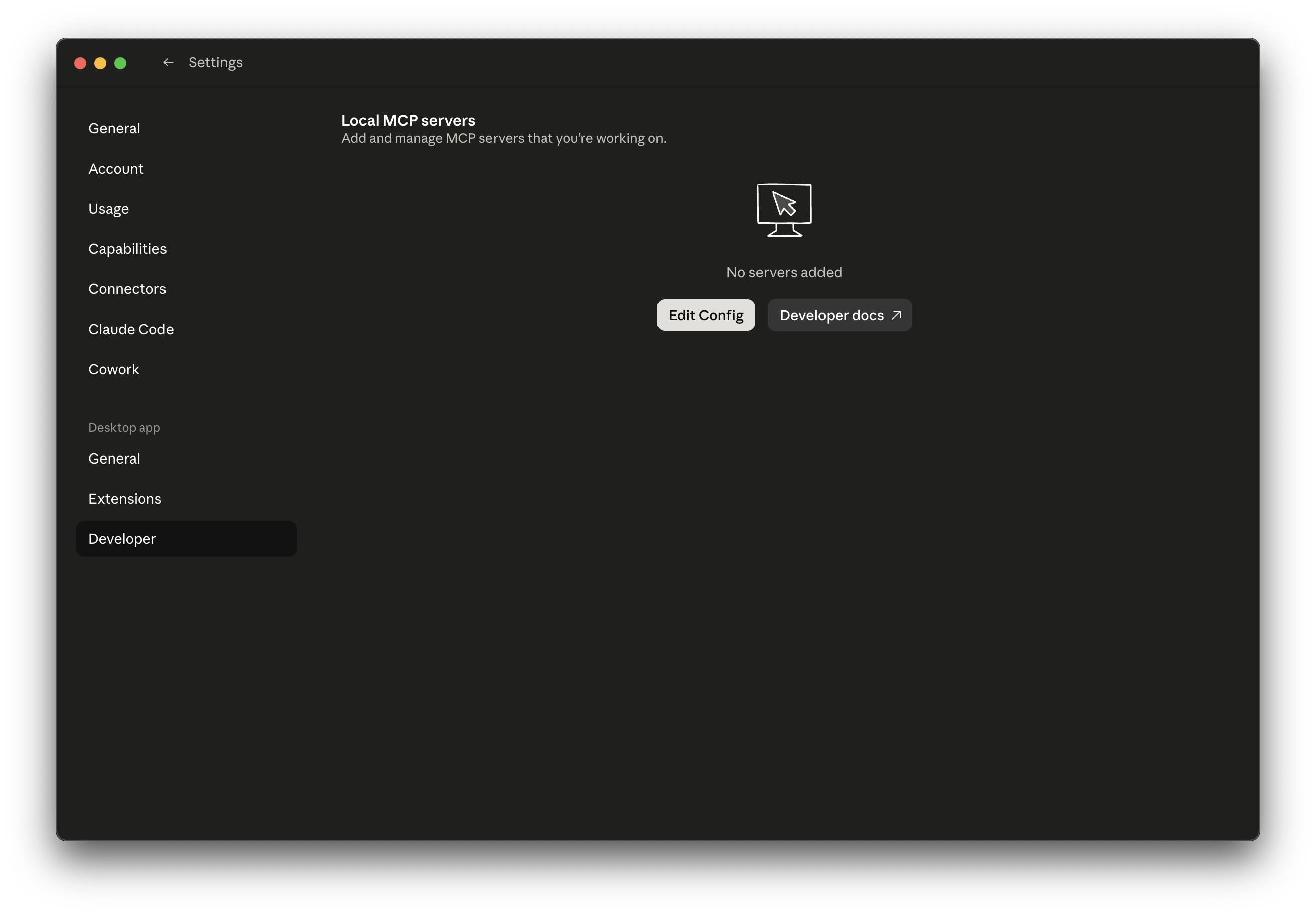
{
"mcpServers": {
"superoffice": {
"command": "npx",
"args": ["-y", "mcp-remote", "https://mcp.superoffice.com/mcp"]
}
}
}Two ways to add the SuperOffice MCP Server to Claude Desktop.
.mcpb file (double-click, drag and drop into Claude Desktop, or via Settings → Extensions → Advanced settings → Install Extension)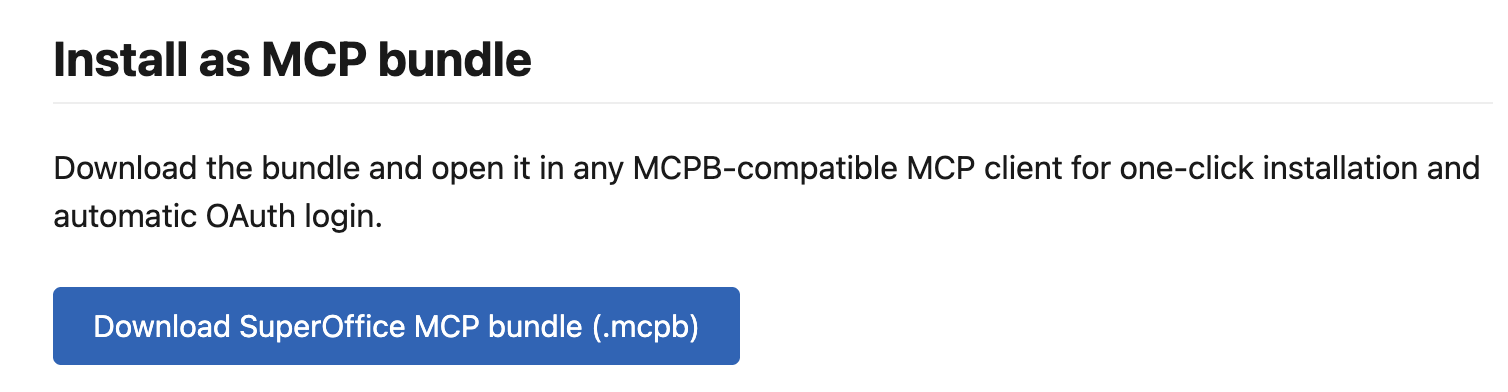
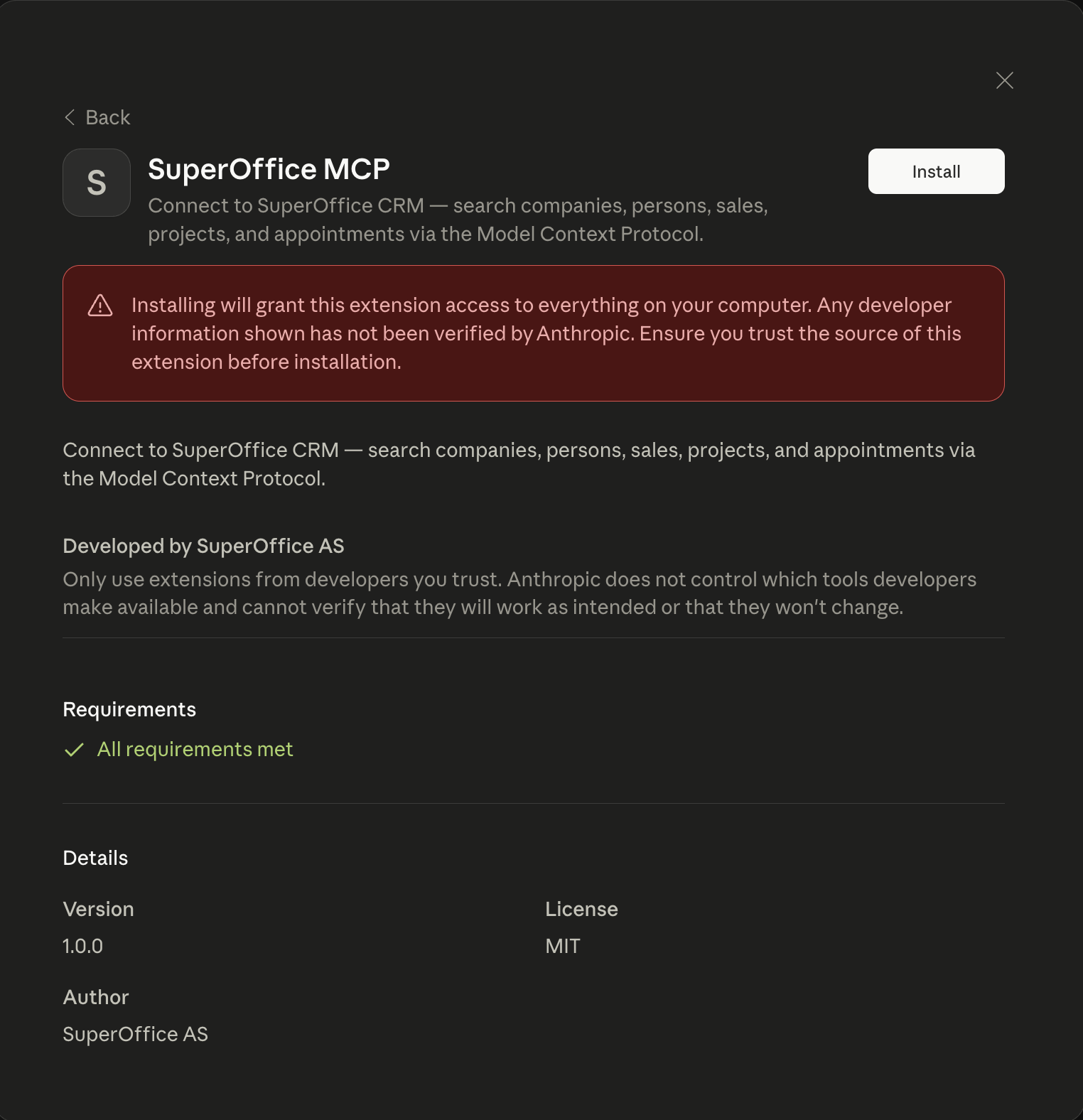
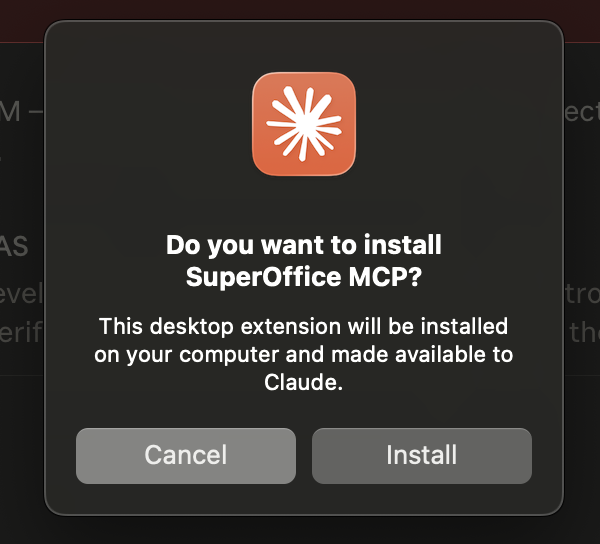
Your SuperOffice tenant (customer database) is tied to the account you sign in with. To switch tenant — or sign in as a different user — you must sign in again. Restarting Claude Desktop or reinstalling the extension does not switch tenant; the saved login is reused automatically.
# macOS / Linux
rm -rf ~/.mcp-auth

# Windows (PowerShell)
Remove-Item -Recurse -Force "$env:USERPROFILE\.mcp-auth"~/.mcp-auth also clears saved logins for any other MCP servers that use mcp-remote. They will prompt you to sign in again the next time you use them.
{
  "mcpServers": {
    "superoffice": {
      "command": "npx",
      "args": ["-y", "mcp-remote", "https://mcp.superoffice.com/mcp"]
    }
  }
}Install Node.js via nvm:
curl -o- https://raw.githubusercontent.com/nvm-sh/nvm/v0.40.1/install.sh | bashThen:
nvm install --ltsUse the full path to npx in your configuration instead of just npx.